
發佈日期:
如何在Microsoft Outlook (Classic)中‧手動加入Teams Meeting Addins
01. 今日同事提及,因重裝Windows後,為何Outlook (Classic)行事曆(Calendar)中,沒有了『Teams Meeting』的按鈕。
02. 原因可能大家都知道,自從Microsoft Teams在2025年7月停用Classic版本後,有關Teams Add-in已經不會安裝到Outlook (Classic)中。現不大家用Outlook APP,或Microsoft Teams中的行事曆,來建立Teams會議。
03. 既然同事問到,今天到網上尋找一下有沒有解決方法。就找到以下相關資料。
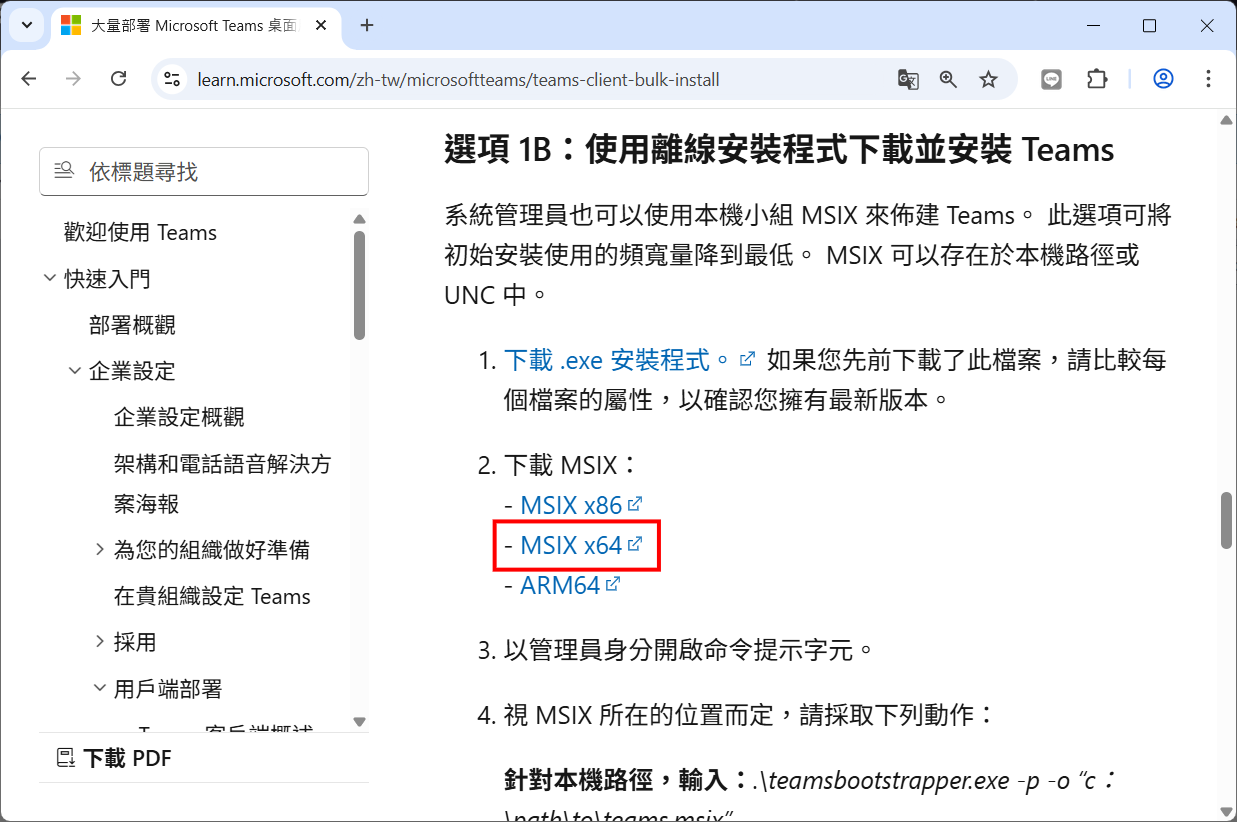
04. 在『Microsoft網頁』下載『Microsoft Teams MSIX』x64檔案。
05. 安裝『Microsoft Teams MSIX』x64檔案,之後用系統管理員身份打開CMD。
06. 到『C:\Program Files\WindowsApps\MSTeams_25332.1210.4188.1171_x64__8wekyb3d8bbwe』資料夾,會找到『MicrosoftTeamsMeetingAddinInstaller.msi』檔案。
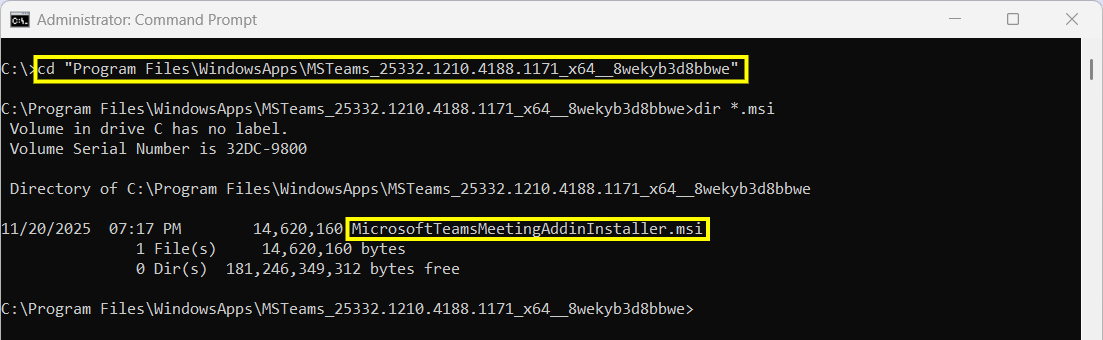
07. 將『MicrosoftTeamsMeetingAddinInstaller.msi』檔案抄到如『C:\temp』資料夾。

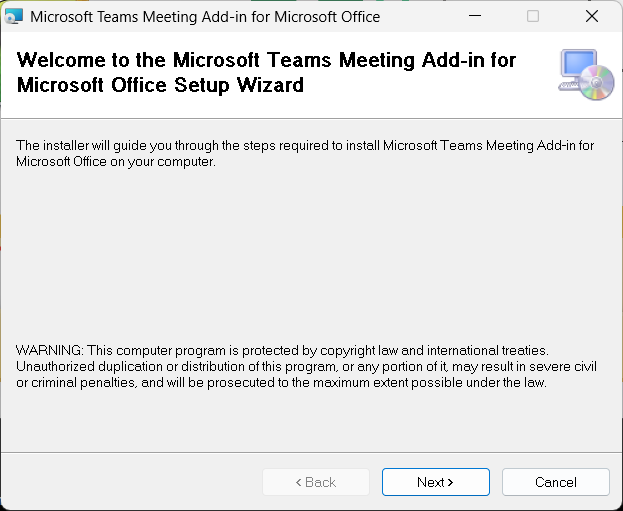
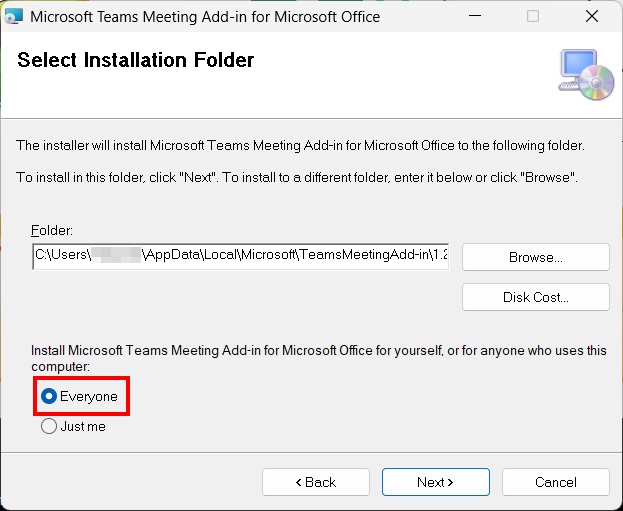
08. 到『C:\temp』資料夾,安裝『MicrosoftTeamsMeetingAddinInstaller.msi』檔案,選擇安裝到所有用戶(Everyone)。。
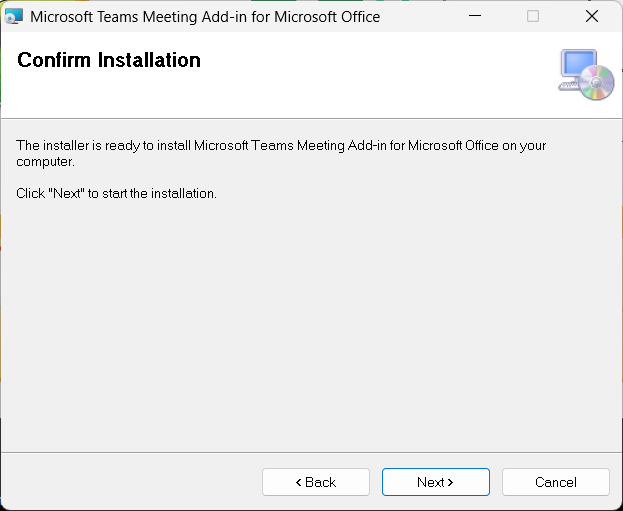
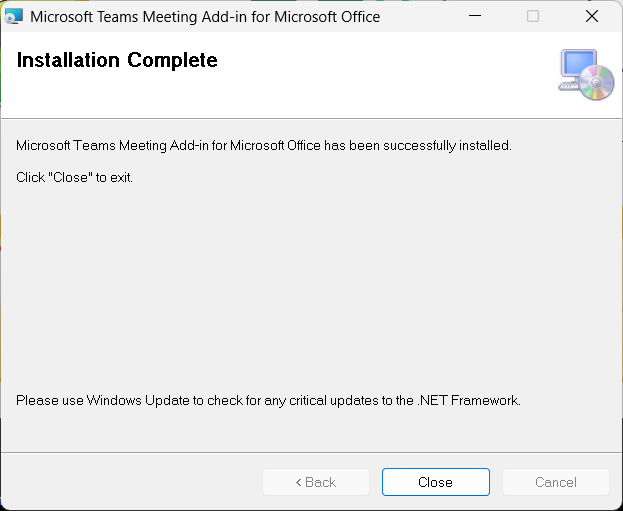
09. 到『%localAppData%\Microsoft\TeamsMeetingAdd-in』資料夾,會看到不同的Teams Addin版本,揀選及進入剛安裝日期的資料夾。
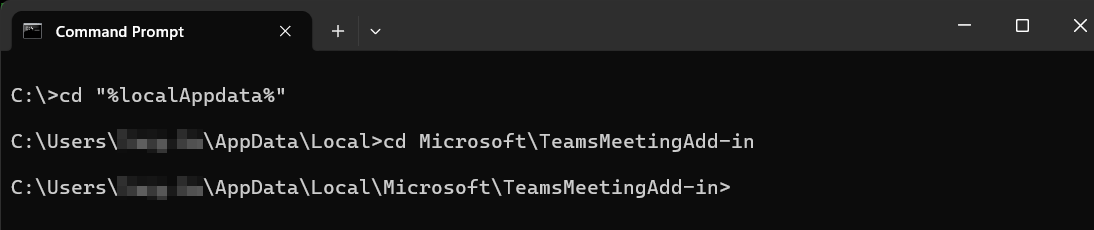
10. 根據Outlook版本,選擇進入『x86』或『x64』資料夾。
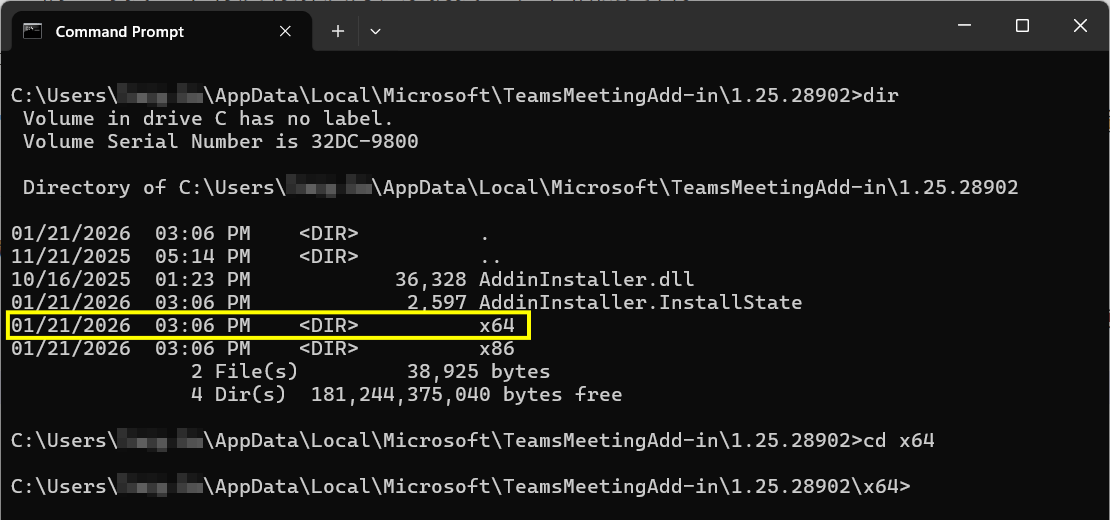
11. 會找到『Microsoft.Teams.MeetingAddin.dll』檔案。
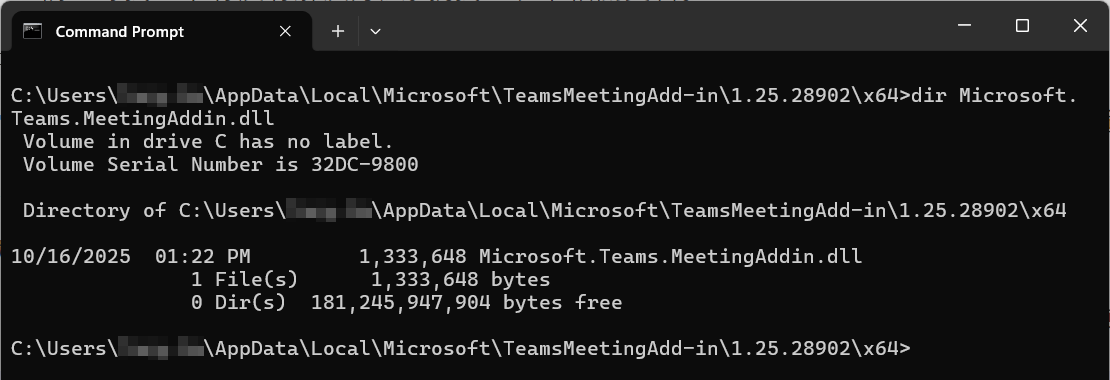
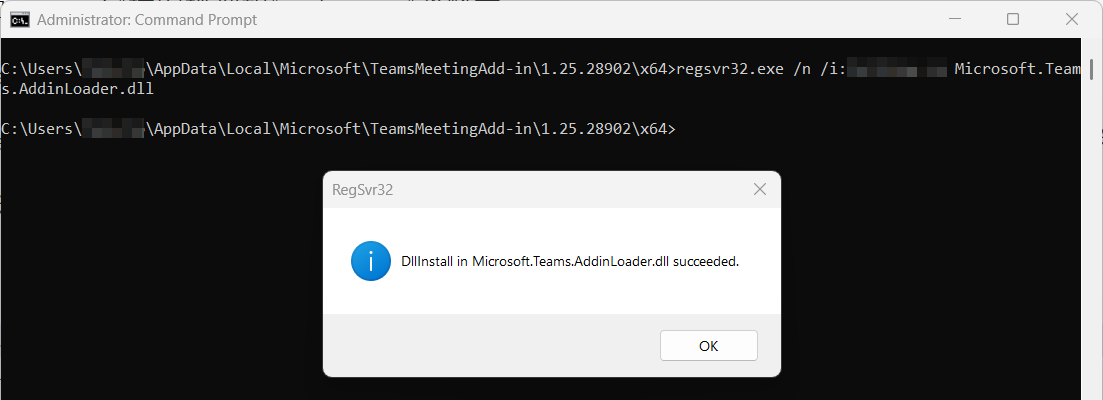
12. 用『regsvr32.exe』登記『Microsoft.Teams.MeetingAddin.dll』檔案到指定用戶。此部入需要用戶擁有系統管理員身份才能成功。
regsvr32.exe /n /i:<username> Microsoft.Teams.MeetingAddin.dll
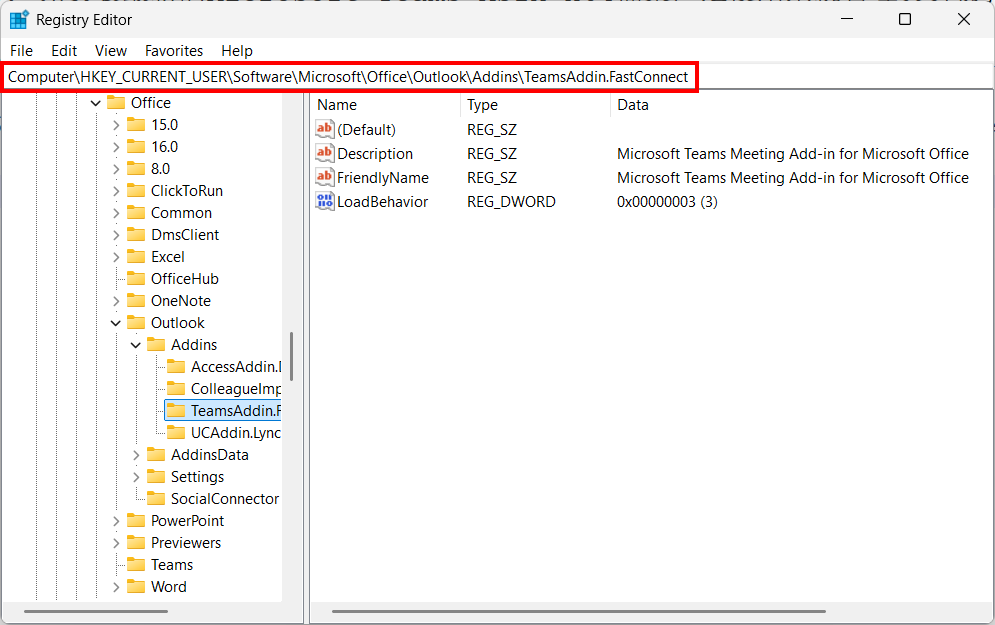
13. 在Windows Registry中,確認『Computer\HKEY_CURRENT_USER\Software\Microsoft\Office\Outlook\Addins\TeamsAddin.FastConnect』位置,已加入以下內容。
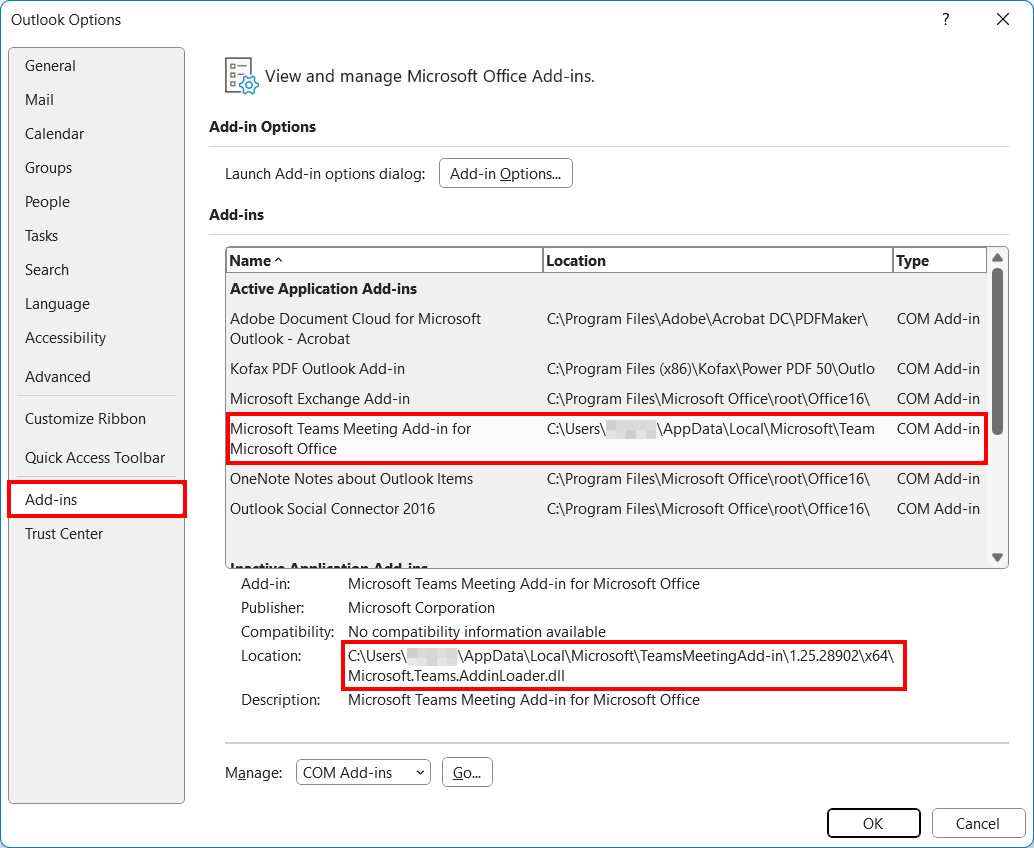
14. 開啟『Outlook』,檢查Teams Add-in是否已加到Outlook (Classic)中。
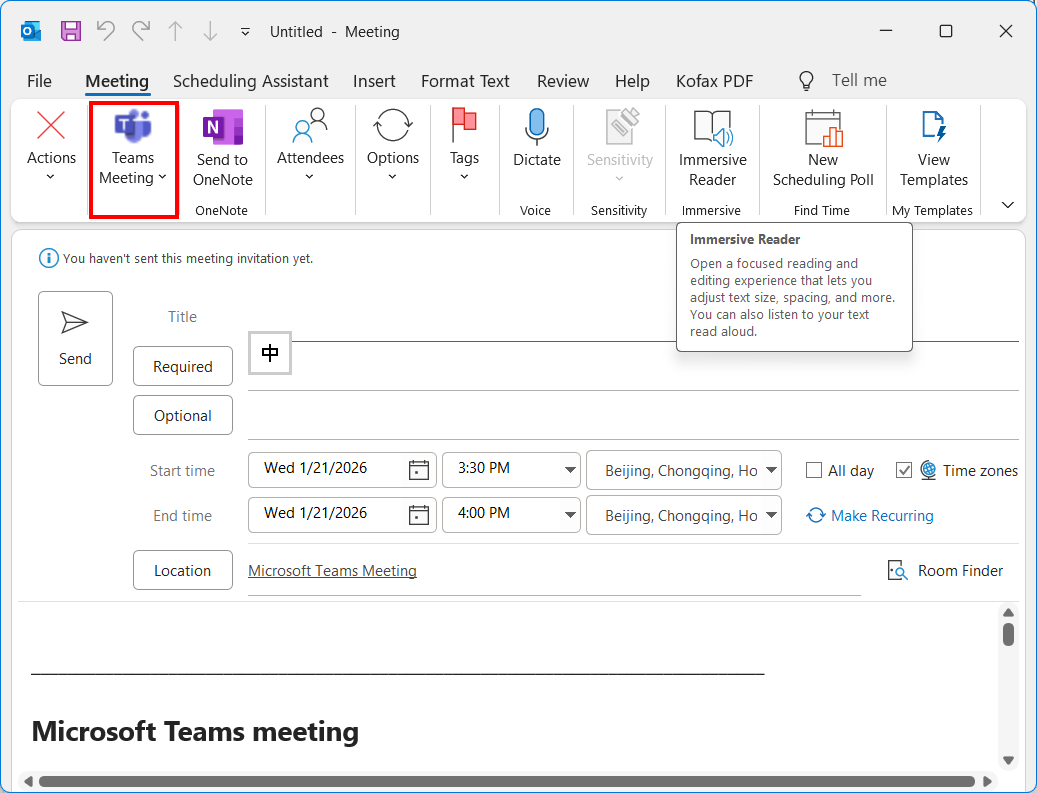
15. 到『Outlook』行事曆中,檢查是否已出現『Teams Meeting』的按鈕。如果沒有看到,重新啟動電腦一次。
16. 下面檔案為MicrosoftTeamsMeetingAddinInstaller.msi檔案(版本為1.25.28902)及Windows Registryp內容。
發佈留言